# Creating a verification system for your server
Welcome to our step-by-step guide on creating a verification system for new members.
This system will allow new members to use a unique verification word or phrase in a designated channel, receive a personalized welcome message, and gain a verified role.
To maintain security, Mochi will automatically delete the response, keeping the verification phrase confidential.
Let's get started with the setup:
### **Step 1: Set Up Your Permissions**
To create a secure environment, it's crucial to lock all your channels initially, making them invisible to new users. If you're unsure about how permissions work, please refer to [**Discord's Permissions Guide**](https://support.discord.com/hc/en-us/articles/206029707-How-do-I-set-up-Permissions)[.](https://support.discord.com/hc/en-us/articles/206029707-How-do-I-set-up-Permissions)
### **Step 2: Guide New Members**
At the end of your rules section, we recommend adding a prompt like "Type 'I agree' to gain access to the rest of the server!" This will guide new members through the verification process.
### **Step 3: Create a Limited Access Role**
Next, create a role that restricts access to the rest of the server. This role should only allow viewing of your rules or landing channel.
### **Step 4: Set Up Channel Permissions**
Ensure that all channels are set up so that this new role cannot view the rest of the server. If you need help, refer to our [**Channel Permissions Template**](https://discord.new/RvxwZa6A5yPb).
This template includes two main roles (Moderator & Verified Member), and four main categories (Info, Verification, Main Chat, and Moderator Corner).
### **Step 5: Create an Autoresponder**
Finally, set up an autoresponder with the phrase '`I agree`'. This will trigger the verification process for new members.
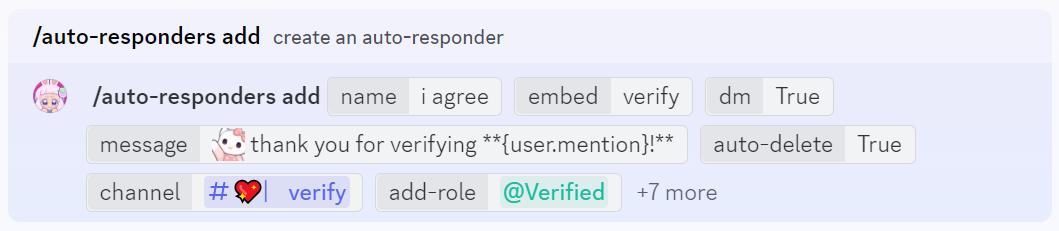
* To create a new autoresponder use the command `/auto-responders add`
setting up a verification autoresponder
* **name** - the trigger for the autoresponder in this example it is "i agree".
* **embed** - sends out a pre-made embed. in this example the embed is called "verify".
* **dm** - the value "true" sends the verification message as a direct message to the member.
* **message** - the verification message. (The message field supports variables).
* **auto-delete** - automatically deletes the message after 3 seconds.
* **channel** - sets the autoresponder to only respond in the specified channel.
* **add-role** - adds the specified role to the new member. in this example it is our verification role.
* if the autoresponder has been setup correctly, you should get the following response:
the verification autoresponder has now been created!
* when the autoresponder trigger word `i agree` is used in the verification channel the following message will be sent as a direct message to the member:
the verification autoresponder has been sent to a new member successfully